
Modulation
INFO
Modulation here means LFOs (low-frequency oscillators) changing values over time — not knob macro setup (see Mapping) and not external MIDI learn (see External mapping).
The S32 has 16 LFOs. Each can drive multiple targets in the active project.
LFO → device parameter
Route an LFO to any rack device parameter (filter cutoff, arp rate, delay time, …):
- Open the device parameter list (rack grid → device).
- Highlight the parameter row.
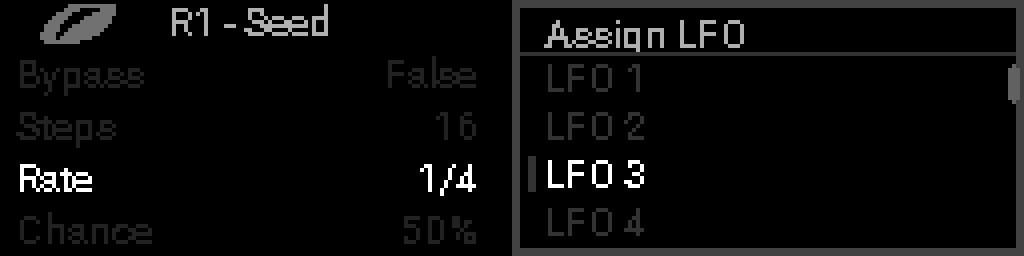
- Long-press Select → Options → Modulation → Assign LFO → pick the source LFO.

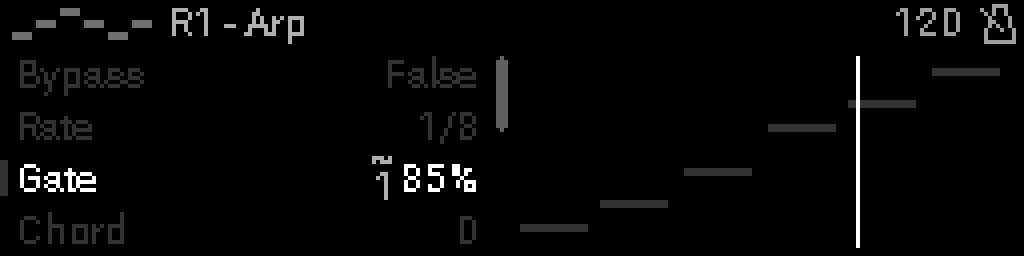
One LFO can modulate many parameters. Assigned rows show an LFO badge (~ and LFO number) beside the value:
INFO
Each project has a hard limit of 64 LFO assignments (one slot per distinct target). Changing the source LFO or range on an already-assigned target still works when the table is full; adding a brand-new target shows LFO ASSIGNMENTS FULL (64 MAX).
Remove LFO modulation
Long-press Select on the assigned row → Options → Modulation → Remove LFO.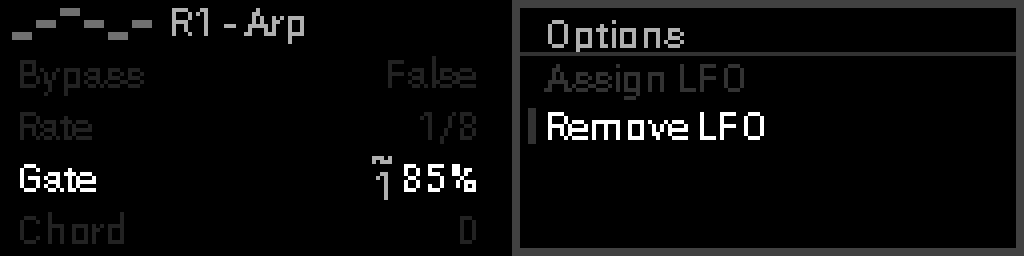
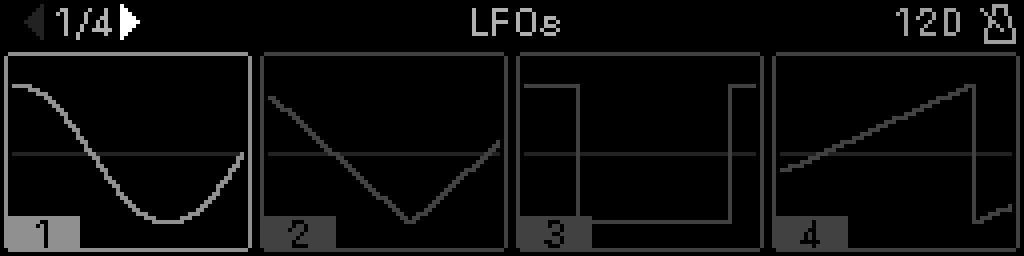
Create and edit LFOs under Main Menu → S32 LFOs:
LFO → LFO parameter
An LFO can modulate another LFO’s parameters (rate, depth, phase, …) within the same domain (S32 LFOs or CV16 LFOs — not cross-domain).
- Main Menu → S32 LFOs → select the target LFO → open its editor.
- Highlight the parameter row (e.g. Rate).
- Long-press Select → Options → Modulation → Assign LFO → pick the source LFO.
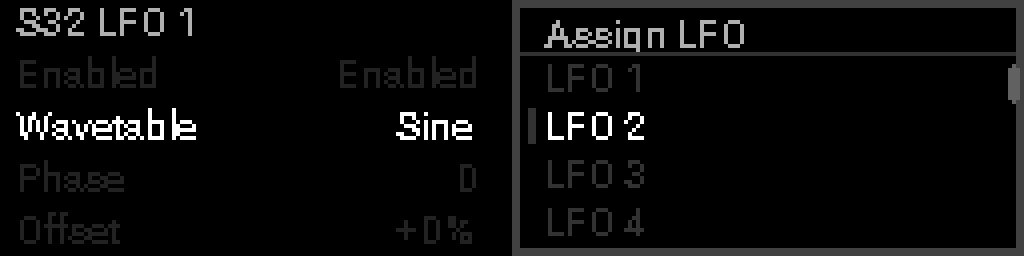
The assigned row shows the same LFO badge. Remove it with Options → Modulation → Remove LFO (same as device parameters).
INFO
More examples and loop rules: LFOs — LFO-to-LFO.
Loop prevention
WARNING
The firmware blocks assignments that would close a cycle in the LFO graph (self-modulation, A→B→A, longer loops). Fan-out (one LFO → many targets) is fine; routing back to an upstream LFO is not.
INFO
Knob → LFO via macro mode S32 LFO Parameter is configured under Mapping — it does not use the LFO assignment graph.
LFO → macro (MIDI message)
For MIDI message macro modes (CC, program change, 14-bit CC, channel aftertouch, poly aftertouch, NRPN, RPN, pitch bend, SysEx), an LFO can modulate the macro output — the values the macro sends when you turn the knob (within the macro’s min/max range).
INFO
Device parameter and S32 LFO parameter macro modes are mapping targets for the knob itself, not LFO-to-macro modulation slots.
Assign from Perform
- Configure the macro (e.g. CC mode) — see Setting up macros.
- On Perform, enter edit mode and Turn the encoder select that macro row.
- Long-press Select → Options → Modulation → Assign LFO → pick the source LFO.
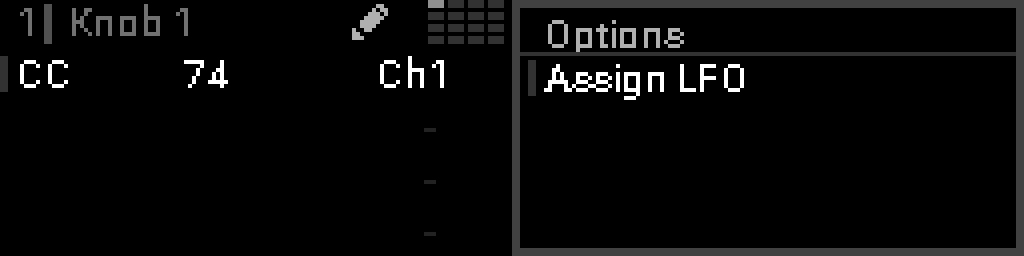
When a modulator is assigned, the macro row shows ~L# in the MIDI routing column, and the big pot may show LFO shadows on modulated macros:
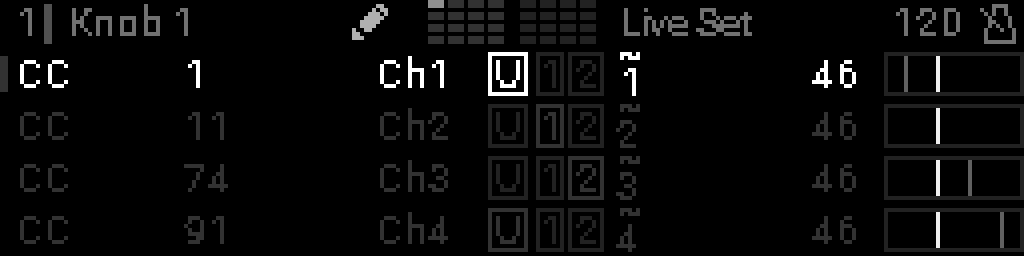
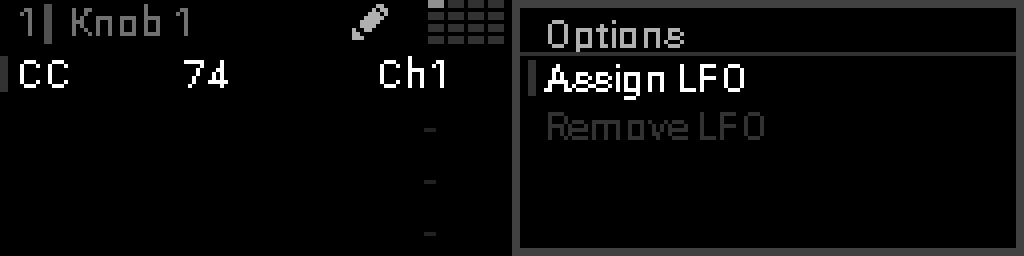
The menu is titled Macro N - Options for the selected macro (1-based). Assign LFO, Edit LFO, Enable/Disable, and Remove LFO live under Modulation, like device and LFO parameter Options. Remove LFO and Disable LFO ask for confirmation first (including the LFO and macro numbers); enabling an LFO applies immediately.
Summary
| Route | Where you assign | Badge / indicator |
|---|---|---|
| LFO → device param | Device parameter list → Options → Modulation → Assign LFO | ~L# on parameter row |
| LFO → LFO param | LFO editor → Options → Modulation → Assign LFO | ~L# on parameter row |
| LFO → macro (MIDI) | Perform edit → macro row → Options → Modulation → Assign LFO | ~L# on macro row + pot shadows |
| Knob → macro / param | Macro grid (Perform) or Options → Mapping → Internal mapping | Knob-macro dots — Mapping |
| External → param | Parameter list → Options → Mapping → External mapping | External badge — External mapping |