
LFO snapshots
LFO snapshots store all 16 S32 LFO configurations (waveform, rate, depth, sync, and the rest of each LFO’s settings). When a CV16 module is in the project, that bank also stores the CV16 LFO configs.
They do not store assignment wiring. After a recall, existing LFO assignments keep running — the snapshot becomes the new config base.
Open the pad
From the S32 LFO grid, hold Select and choose SNAPSHOTS BANK. That is the one door to this bank — the 4×8 pad opens, header LFOs Snapshots, the same pad as knob snapshots.
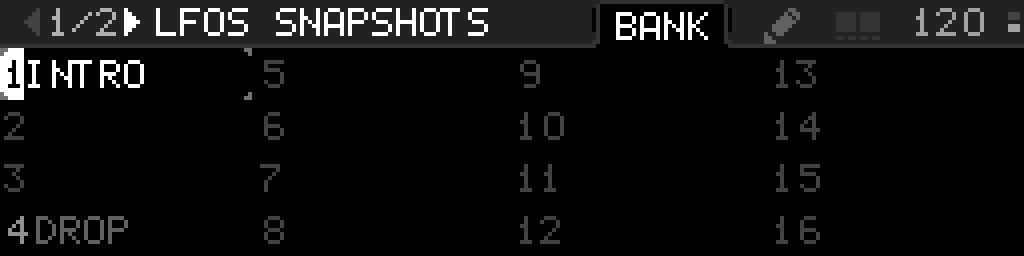
Pad marks match knob snapshots: full-height stamp behind the number = active; a dimmer clock-breathing stamp plus remaining-quarter marks = Arrange QUEUE or delayed SYNC. Dirty * is knobs-only.
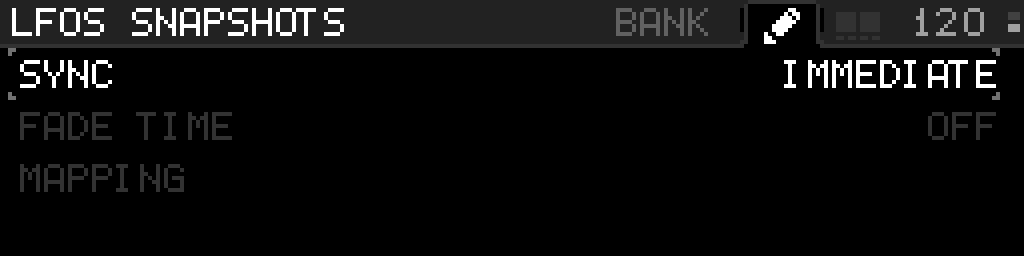
Occupied Select morphs live to that pad. Empty Select is ignored unless TAKE is pending. + TAKE stores the highlighted empty cell. RETAKE recaptures the occupied cell you long-pressed. Occupied EDIT SNAPSHOT is Rename, Copy, Swap, Move, and Delete. To leave one whole S32 LFO where it is on every recall, fade, and morph, long-press that grid cell and choose IN SNAPSHOT OFF. The switch starts ON and covers every snapshot. The cell shows OFF. While it reads OFF, IN SNAPSHOT on that LFO’s parameter rows is hidden. For a single LFO parameter — just the rate, say — use Options → IN SNAPSHOT on that parameter row when the LFO itself is ON: see Keep one parameter under your hands.
A CV16 LFO uses the same switch. Main Menu → CV16 Module → CV16 LFOs, highlight a row, and long-press Select. Options is one row, IN SNAPSHOT ON or IN SNAPSHOT OFF. It starts ON. OFF leaves that CV16 LFO where it is on every recall, fade, and morph, and the row shows OFF. Select+Back does not open Options. The snapshot pad still opens from the S32 LFO grid.
COPY / SWAP / MOVE close the menu; the next Select on the 4×8 is the destination. Copy keeps the source. Swap onto empty moves. Occupied destinations confirm overwrite. Same as knob snapshots.
Step by step
- Main Menu → S32 LFOs (or the encoder shortcut if configured).
- Hold Select to open Options. The grid stays behind the half-screen menu.
- Choose SNAPSHOTS BANK (below REVIEW ASSIGNMENTS).
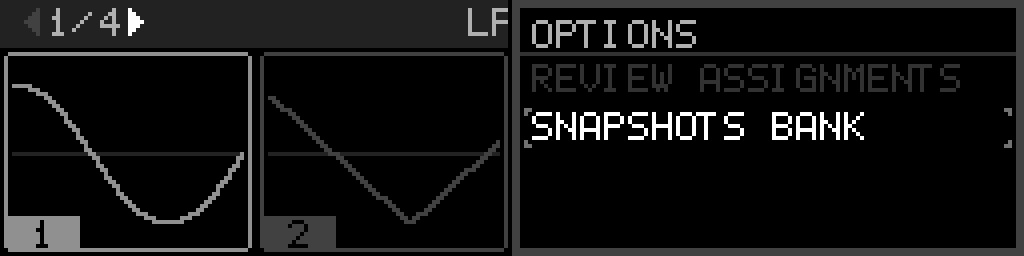
| Options row | Action |
|---|---|
| REVIEW ASSIGNMENTS | List everything the highlighted LFO modulates |
| SNAPSHOTS BANK | Open the LFO 4×8 pad |
| IN SNAPSHOT ON/OFF | Leave this whole S32 LFO out of every recall, fade, and morph. Starts ON. OFF paints OFF on the cell |
Take, recall, morph, and EDIT live on BANK. Mapping, SYNC, and this bank's FADE TIME live on the pencil. There is no snapshot list on the Options menu. Back on the pad returns straight to the grid.
Options has no Arrange shortcut. Open Arrange from ARRANGE on Main Menu.
Another occupied pad while a morph is running retargets. Empty pads TAKE.
Recall and take do not force a flash save. Use Save Project when you want the new slots to survive power-off.