
Rack snapshots
Rack snapshots store device parameters (and the Step Seq pattern, when that device is in the chain) for one rack. They do not change which devices are in the chain.
Open the pad
From the rack list, highlight a rack, hold Select, and choose SNAPSHOTS BANK. That is the one door to a rack's bank — the 4×8 pad opens, header Rack 1 Snapshots…Rack 8 Snapshots (not the rack name), the same pad as knob snapshots.
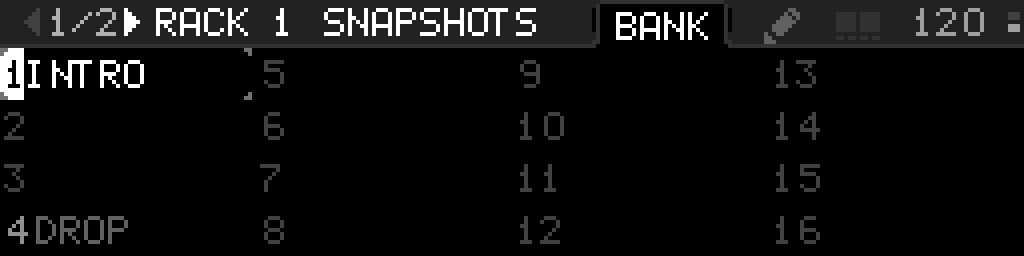
Pad marks match knob snapshots: full-height stamp behind the number = active; a dimmer clock-breathing stamp plus remaining-quarter marks = Arrange QUEUE or delayed SYNC. Dirty * is knobs-only.
Occupied Select morphs live to that pad. Empty Select is ignored unless TAKE is pending. + TAKE stores the highlighted empty cell. RETAKE recaptures the occupied cell you long-pressed. Occupied EDIT SNAPSHOT is Rename, Copy, Swap, Move, and Delete. To leave one whole device where it is on every recall, fade, and morph, open that rack’s device grid, long-press the device, and choose IN SNAPSHOT OFF. The switch starts ON and covers every snapshot. The cell shows OFF. While it reads OFF, IN SNAPSHOT on that device’s parameter rows is hidden. For a single parameter rather than a whole device, use Options → IN SNAPSHOT on that parameter row when the device itself is ON — see Keep one parameter under your hands.
COPY / SWAP / MOVE close the menu; the next Select on the 4×8 is the destination. Copy keeps the source. Swap onto empty moves. Occupied destinations confirm overwrite. Same as knob snapshots.
A rack with no devices cannot be stored — the display shows RACK HAS NO DEVICES.
All 32 pads on a rack can be filled and saved with the project. + TAKE shows NO FREE SNAPSHOT SLOTS when too many unsaved scenes are still in RAM (Save Project clears that). That is not a hidden pad cap.
Step by step
- Main Menu → Racks (or the project racks list).
- Highlight a rack.
- Hold Select to open the rack side menu. The list stays behind the half-screen menu.
- Choose SNAPSHOTS BANK.
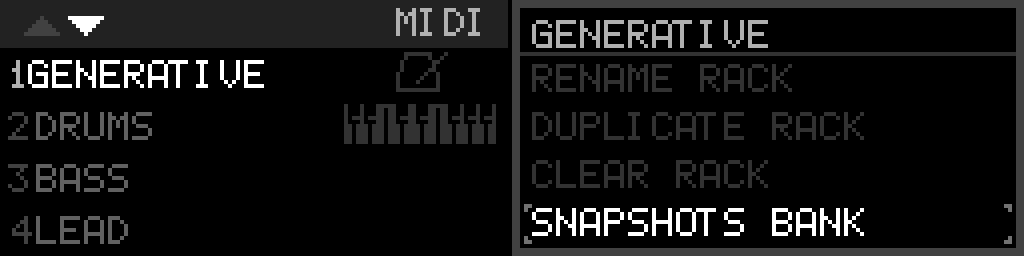
| Rack Options row | Action |
|---|---|
| RENAME RACK | Rename that rack |
| DUPLICATE RACK | Copy the rack into a free slot |
| CLEAR RACK | Empty the rack |
| SNAPSHOTS BANK | Open that rack's 4×8 pad |
Take, recall, morph, and EDIT live on BANK. Mapping, SYNC, and this bank's FADE TIME live on the pencil. There is no snapshot list on the rack menu. Back on the pad returns straight to the racks list.
Rack Options has no Arrange shortcut. Open Arrange from ARRANGE on Main Menu.
Another occupied pad while a morph is running retargets. Empty pads TAKE.
Recall and take do not force a flash save. Use Save Project when you want the new slots to survive power-off.
Recalled Step Seq steps match the captured grid. The playhead is not reset unless loading a Step Seq pattern already does that.